

Todas las skills
Documentos
Esquema a presentación
Un esquema con viñetas pasa a una presentación HTML limpia.
La demo usa datos ficticios. El resultado que ves es lo que produjo la skill con esa entrada de ejemplo.
Pruébala en 3 pasos
- 01
Copia la carpeta, o solo SKILL.md, en .claude/skills/ de tu proyecto (o en ~/.claude/skills/ para usarla en todas partes).
- 02
Abre Claude Code y pídela por su nombre, por ejemplo: Usa la skill slides-from-outline con mis archivos.
- 03
Revisa el resultado. Las skills crean un archivo nuevo y nunca sobrescriben los tuyos.
Ver el ejemplo
Entrada de ejemplo · input.md
# Community Garden Plan 2027
Proposal for the Elm Street neighbours' meeting

## Why a garden
- Empty lot on Elm Street has been unused since 2022
- 23 households signed the interest sheet
- Neighbours want fresh vegetables and a place to meet

## What we need
- 12 raised beds
- A shared tool shed
- A water tank with a hand pump

## Timeline
- March: clear the lot and mark the beds
- April: build beds and the shed
- May: first planting day

## Next steps
- Vote on the plan at the March meeting
- Sign up for a build day
- Bring one tool to share
Salida de ejemplo · output.html
<!doctype html>
<html lang="en">
<head>
<meta charset="utf-8">
<meta name="viewport" content="width=device-width,initial-scale=1">
<title>Community Garden Plan 2027</title>
<style>
*{box-sizing:border-box}
body{margin:0;font:clamp(1rem,2.6vw,1.5rem)/1.5 system-ui,sans-serif;background:#fff;color:#1a1a1a}
.slide{min-height:100vh;padding:8vh 8vw;display:flex;flex-direction:column;justify-content:center;border-bottom:1px solid #ccc}
h1{font-size:clamp(2rem,7vw,4rem);margin:0 0 .4em;color:#14532d}
h2{font-size:clamp(1.6rem,5vw,3rem);margin:0 0 .6em;color:#14532d}
li{margin:.4em 0}
.js .slide{display:none;border:0}
.js .slide.on{display:flex}
nav{display:none}
.js nav{display:flex;position:fixed;bottom:0;left:0;right:0;justify-content:space-between;align-items:center;padding:.6rem 1rem;background:#14532d;color:#fff}
nav button{font:inherit;min-width:3rem;min-height:3rem;border:2px solid #fff;background:#14532d;color:#fff;border-radius:.4rem}
nav button:focus-visible{outline:3px solid #fde047}
</style>
</head>
<body>
<main>
<section class="slide"><h1>Community Garden Plan 2027</h1><p>Proposal for the Elm Street neighbours' meeting</p></section>
<section class="slide"><h2>Why a garden</h2><ul><li>Empty lot on Elm Street has been unused since 2022</li><li>23 households signed the interest sheet</li><li>Neighbours want fresh vegetables and a place to meet</li></ul></section>
<section class="slide"><h2>What we need</h2><ul><li>12 raised beds</li><li>A shared tool shed</li><li>A water tank with a hand pump</li></ul></section>
<section class="slide"><h2>Timeline</h2><ul><li>March: clear the lot and mark the beds</li><li>April: build beds and the shed</li><li>May: first planting day</li></ul></section>
<section class="slide"><h2>Next steps</h2><ul><li>Vote on the plan at the March meeting</li><li>Sign up for a build day</li><li>Bring one tool to share</li></ul></section>
</main>
<nav aria-label="Slides"><button id="p" aria-label="Previous slide">←</button><span id="c" aria-live="polite"></span><button id="n" aria-label="Next slide">→</button></nav>
<script>
document.documentElement.className="js";
var s=document.querySelectorAll(".slide"),i=0,c=document.getElementById("c"),x=0;
function show(k){i=Math.max(0,Math.min(s.length-1,k));for(var j=0;j<s.length;j++)s[j].classList.toggle("on",j===i);c.textContent=(i+1)+" / "+s.length;location.hash=i+1}
document.getElementById("p").onclick=function(){show(i-1)};
document.getElementById("n").onclick=function(){show(i+1)};
document.addEventListener("keydown",function(e){var k=e.key;if(k==="ArrowRight"||k==="PageDown"||k===" ")show(i+1);else if(k==="ArrowLeft"||k==="PageUp")show(i-1);else if(k==="Home")show(0);else if(k==="End")show(s.length-1)});
document.addEventListener("touchstart",function(e){x=e.touches[0].clientX});
document.addEventListener("touchend",function(e){var d=e.changedTouches[0].clientX-x;if(d<-50)show(i+1);else if(d>50)show(i-1)});
show((parseInt(location.hash.slice(1),10)||1)-1);
</script>
</body>
</html>
La skill · SKILL.md
---
name: slides-from-outline
description: Turns a bullet outline into one self-contained HTML slide deck with arrow-key navigation, mobile-friendly layout, readable contrast and no external requests. Use when someone has an outline or notes and wants a presentation file that opens in any browser.
---
# Slides from outline

A bullet outline in, a single offline HTML slide deck out.

## When to use
- The user has a markdown or plain-text outline and wants slides they can open, share or present from a browser.
- No PowerPoint, no accounts, no internet needed.

## Inputs
- The outline as a file path or pasted text. If missing, ask for it.
- Optional: deck title, language, accent colour (default dark green on white), maximum number of slides.
- Ask before assuming if the outline has no clear title or has headings with no bullets.

## Steps
1. Parse the outline: a `#` line is the deck title (the first line under it is the subtitle), each `##` line starts a slide, and each `-` line is a bullet on that slide.
2. Keep the user's wording. Do not add facts, figures or extra slides. If a slide has more than 6 bullets, ask whether to split it.
3. Build one HTML file: `<!doctype html>`, `lang`, charset and viewport meta tags, a `<title>` equal to the deck title, one inline `<style>` and one inline `<script>`.
4. Make each slide a `<section class="slide">` holding an `h1` (title slide) or `h2` and a `ul`. Escape `&`, `<` and `>` in the text.
5. Style with fluid type (`clamp()`), padding in `vw` and `vh`, and colours with a contrast ratio of at least 4.5:1 for text (dark text on white, white text on a dark bar). Compute the ratio if you change colours.
6. Add the script: show one slide at a time, left and right arrows (also PageUp, PageDown, Home, End) and on-screen previous and next buttons with `aria-label`, a visible focus outline, swipe on touch screens, a counter such as `2 / 5` in an `aria-live` region.
7. Keep a no-script fallback: without JavaScript all slides stack in reading order.
8. Check: no `src`, `href` or `url(` pointing outside the file, no web fonts, no remote scripts, tags balanced, file under 20 KB.

## Output
Write `<deck name>-slides.html` as a new file next to the outline, then say how to use it: open the file in a browser, press the arrow keys, swipe or tap the buttons.

## Rules
- Never invent slide content, numbers or quotes beyond the outline.
- Write results to a new file, never overwrite the outline or an earlier deck.
- Do not make network requests: no CDN, fonts, analytics or images from outside.
- Do not rely on colour alone to carry meaning; keep text at 4.5:1 contrast or better.
- Keep the content local; do not upload it.
- Out of scope: legal, medical, tax or financial advice in the deck's content. Flag such claims for a professional.
Las skills te ayudan a leer y ordenar. No son asesoramiento legal, médico, fiscal ni financiero.
Más skills
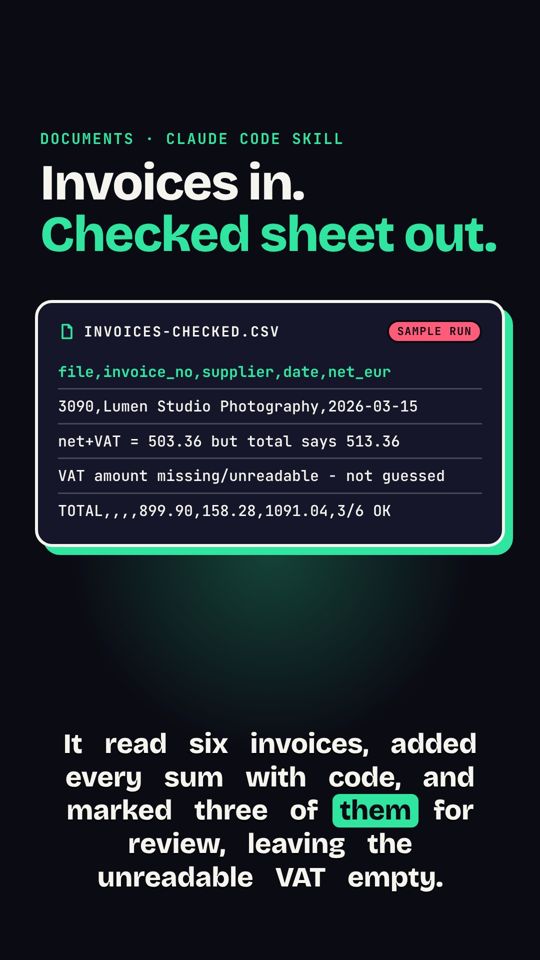 Facturas a hoja de cálculoUna carpeta de facturas, en texto o escaneadas, pasa a un CSV limpio con comprobación de totales.
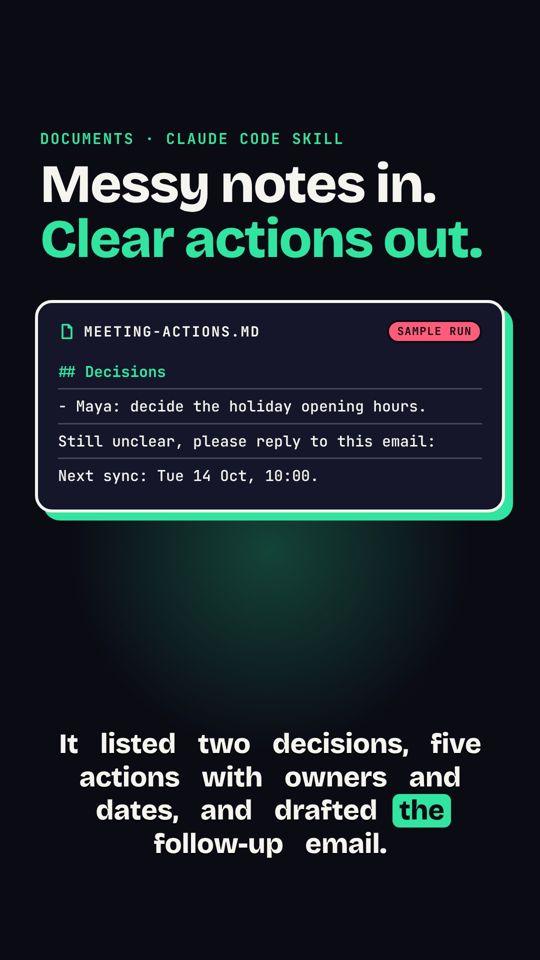 Notas de reunión a tareasNotas desordenadas pasan a decisiones, responsables, plazos y un correo de seguimiento.
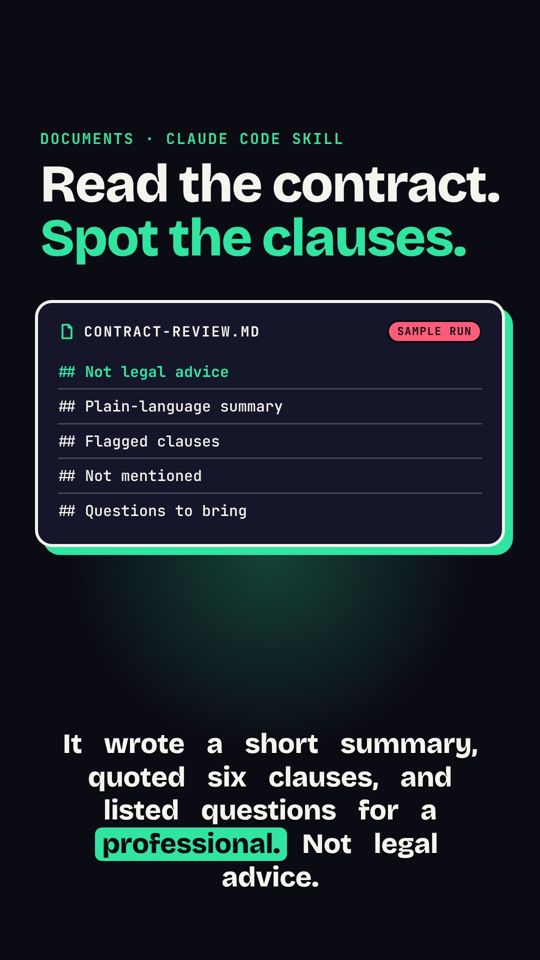 Alertas en un contratoResume un contrato y señala cláusulas para consultar con un profesional. No es asesoramiento legal.